

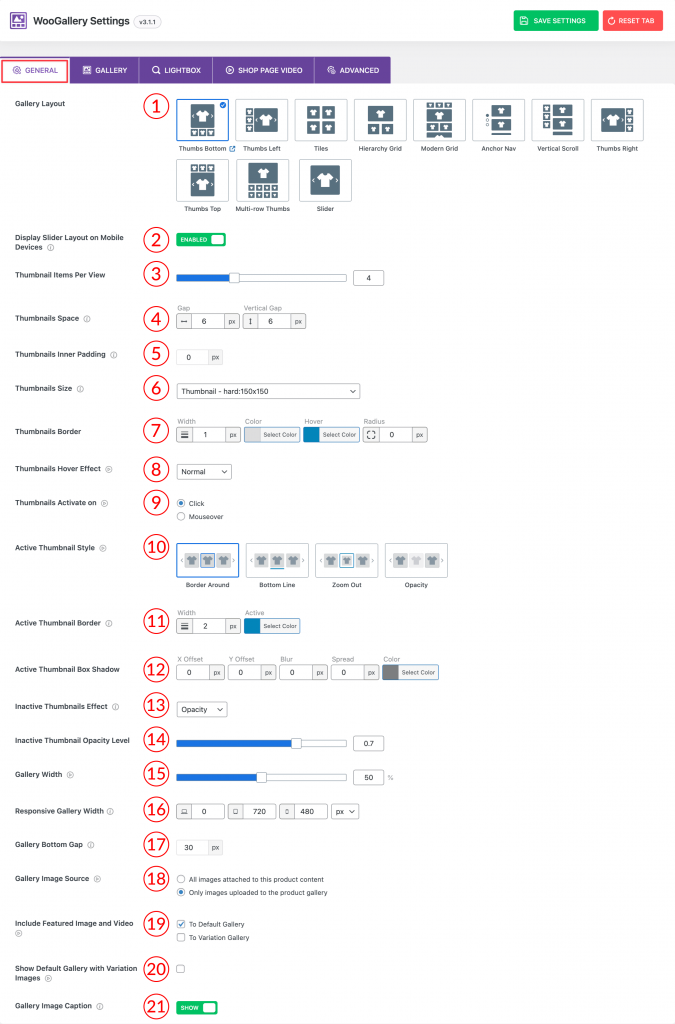
1) Gallery Layout: Choose a layout for your product gallery from 8 different layout presets:
- Thumbs Bottom
- Thumbs Left
- Grid
- Hierarchy Grid
- Anchor Nav
- Thumbs Right
- Thumbs Top
- Slider
2) Display Slider Layout on Mobile Devices: Enable the option to show the slider layout on mobile devices.
3) Thumbnails Item To Show: Set the number of the thumbnail items you want to show in your product gallery.
4) Thumbnails Space: Set the value of the Gap between the images and the Vertical Gap in pixels as per your need.
5) Thumbnails Inner Padding: Set the padding value around the images of your gallery slider.
6) Thumbnails Size: Select a pre-defined thumbnail size from the dropdown, you can set a custom thumbnail size from there as well.
7) Thumbnails Border: Set a border width, normal color, hover color, and border-radius from here.
8) Thumbnails Hover Effect: From the dropdown, select any of the Hover Effects you want. Available options are:
- Normal
- Zoom In
- Zoom Out
- Slide Up
- Slide Down
9) Thumbnails Activate On: Select any of the activator types you want from here. Options are:
- Click: The user or visitor has to click on the thumbnail to change the product image.
- Mouseover: The product image will be replaced when the mouse hovers over the thumbnail.
10) Active Thumbnail Style: Select any of the active thumbnail styles from the 4 different styles. Available options are:
- Border Around
- Bottom Line
- Zoom Out
- Opacity
11) Active Thumbnail Border: Set a border width and color for your active thumbnail.
12) Active Thumbnail Box Shadow: Set the values and color for the active thumbnail’s box shadow as per your need.
13) Inactive Thumbnails Effect: From the dropdown here, select any of the inactive thumbnail effects you want:
- Opacity
- Grayscale
- None
14) Inactive Thumbnail Opacity Level: Set the opacity level for your inactive thumbnail here.
15) Gallery Width: Set the product gallery width in percentage (%) as you want from here.
16) Responsive Gallery Width: Set the responsive product gallery width to adapt to different screen sizes and devices while showcasing product images.
17) Gallery Bottom Gap: Set the value for the bottom gap for your product gallery.
18) Gallery Image Source: Set a Gallery image source from the 2 different options.
- All images attached to this product.
- Only images uploaded to the product gallery.
19) Include Featured Image: Two options are available here with checkbox:
- To Default Gallery
- To Variation Gallery
Check the options to include featured image in the default gallery images and variation gallery images.
20) Show Default Gallery with Variation Images: Check the option to show default gallery images with the variation images of your product.
21) Gallery Image Caption: Use the option to Show/Hide image caption on your product gallery.