

- Plugin Installation
- License Key Activation
- Displaying WooGallery
After purchasing the plugin, you may look forward to a quick guide where you will get all the information from installation to displaying the WooGallery on your product’s single page. In this article, you will get step-by-step guidelines to use the plugin in no time.
Plugin Installation
After downloading the plugin, you’ll find the files in a zip folder on your computer named woo-gallery-slider-pro.zip. To install the “WooGallery Pro” version, follow the steps below.
1) Go to your WordPress Dashboard → Plugins → Add New Plugin.
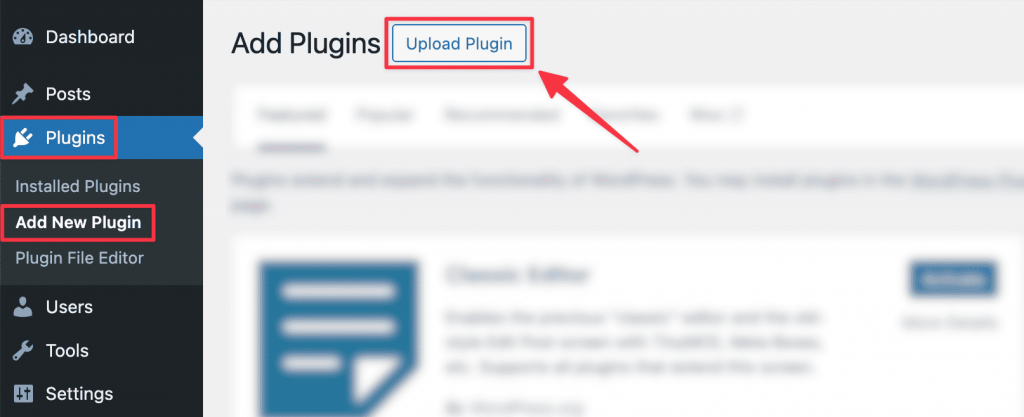
2) Click “Upload Plugin”, select the plugin zip file, and click “Install Now”.
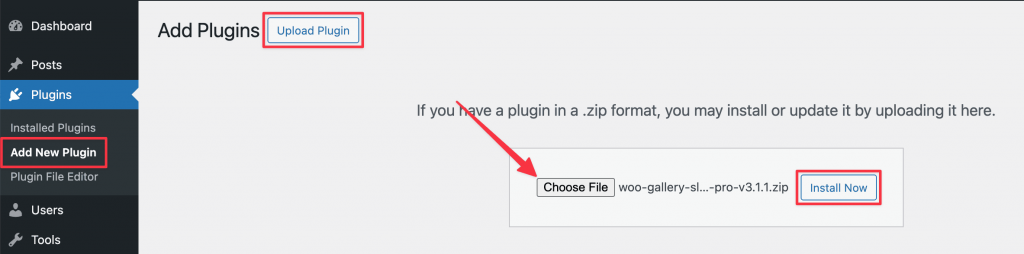
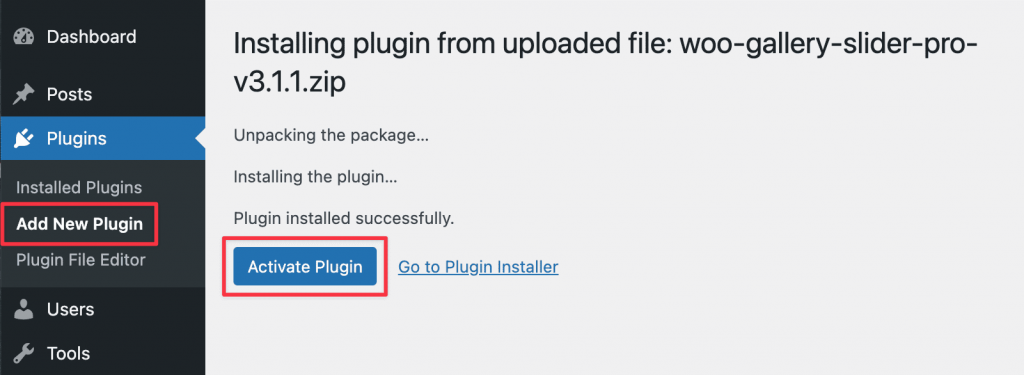
3) Once installed, click “Activate Plugin” to activate it.
License Key Activation
After activating the plugin, you will be redirected to the License Activation page. Get the License key from your ShapedPlugin account and insert it into the License Activation Field.
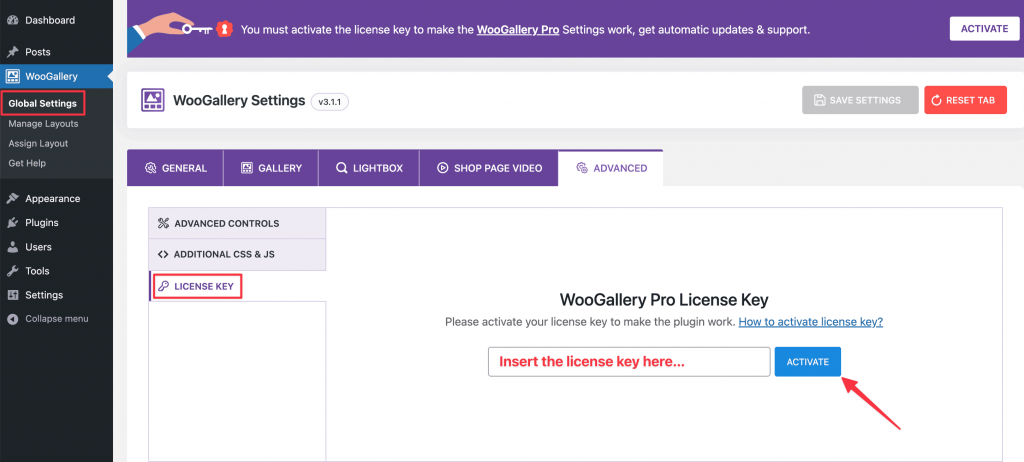
After activating the License Key, you are ready to show the Customized Gallery Slider of your products.
Displaying WooGallery
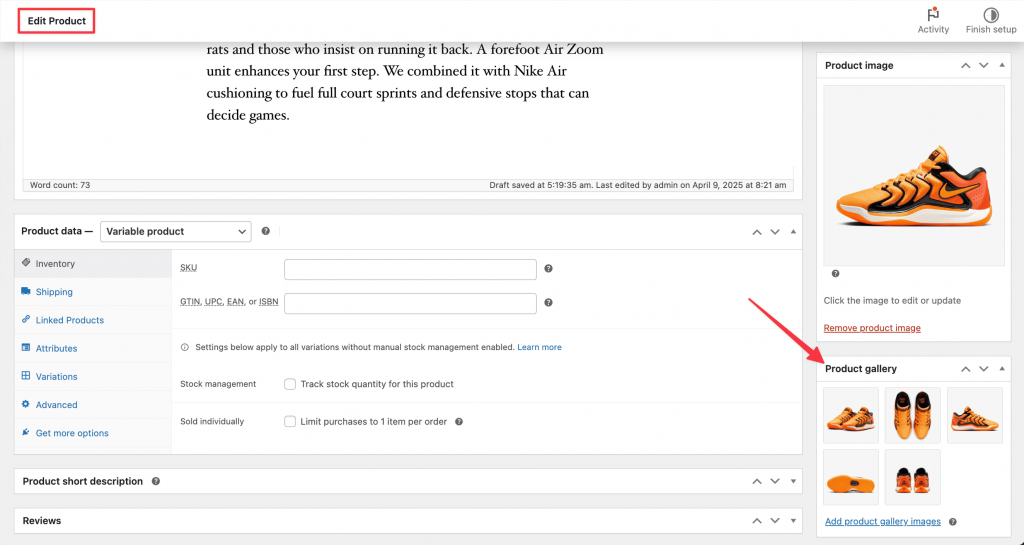
Upload product gallery images to the product from the product edit page to see the Gallery Slider on the Single Product Page.
After doing so, go to a Single Product Page, and you will see the WooGallery showing like below:

More Demos Here→
There are numerous options available—Gallery Layouts, Gallery Width, Slider Orientation, Add Variation Gallery, Videos, and more—to customize the gallery Slider.
Watch the video to see the visual demonstration of the above steps: