

Have you encountered an unexpected issue with WooGallery? Our plugin uses best practices to ensure compatibility on as many WordPress sites as possible. However, sometimes other developers don’t follow these standards, or other unexpected issues occur, resulting in a theme or plugin conflict.
In this tutorial, we’ll walk through how to locate and troubleshoot theme or plugin conflicts.
- Checking for Plugin Conflicts
- Checking for Theme Conflicts
- What to Do After Locating a Conflict
Note: This tutorial will cover the most common steps WooGallery users will need for troubleshooting theme or plugin conflicts.
Checking for Plugin Conflicts
Most plugins need to load extra resources, such as CSS stylesheets or JavaScript files, in order to work properly. In some cases, though, the code from these files will alter elements outside of their intended scope and break or change functionality.
By following the steps below, you should be able to determine if the issue you’re experiencing is the result of code from another plugin.
Take a Site Backup
Before you get started, be sure to take site backup. Before making changes to your theme or plugins, this is always a good precaution.
Deactivate All Other Plugins
Once you’ve finished backing up your site, go to the Plugins page. There, you’ll need to select all your plugins except WooGallery. Then open the Bulk Actions dropdown at the top of the page and choose Deactivate.
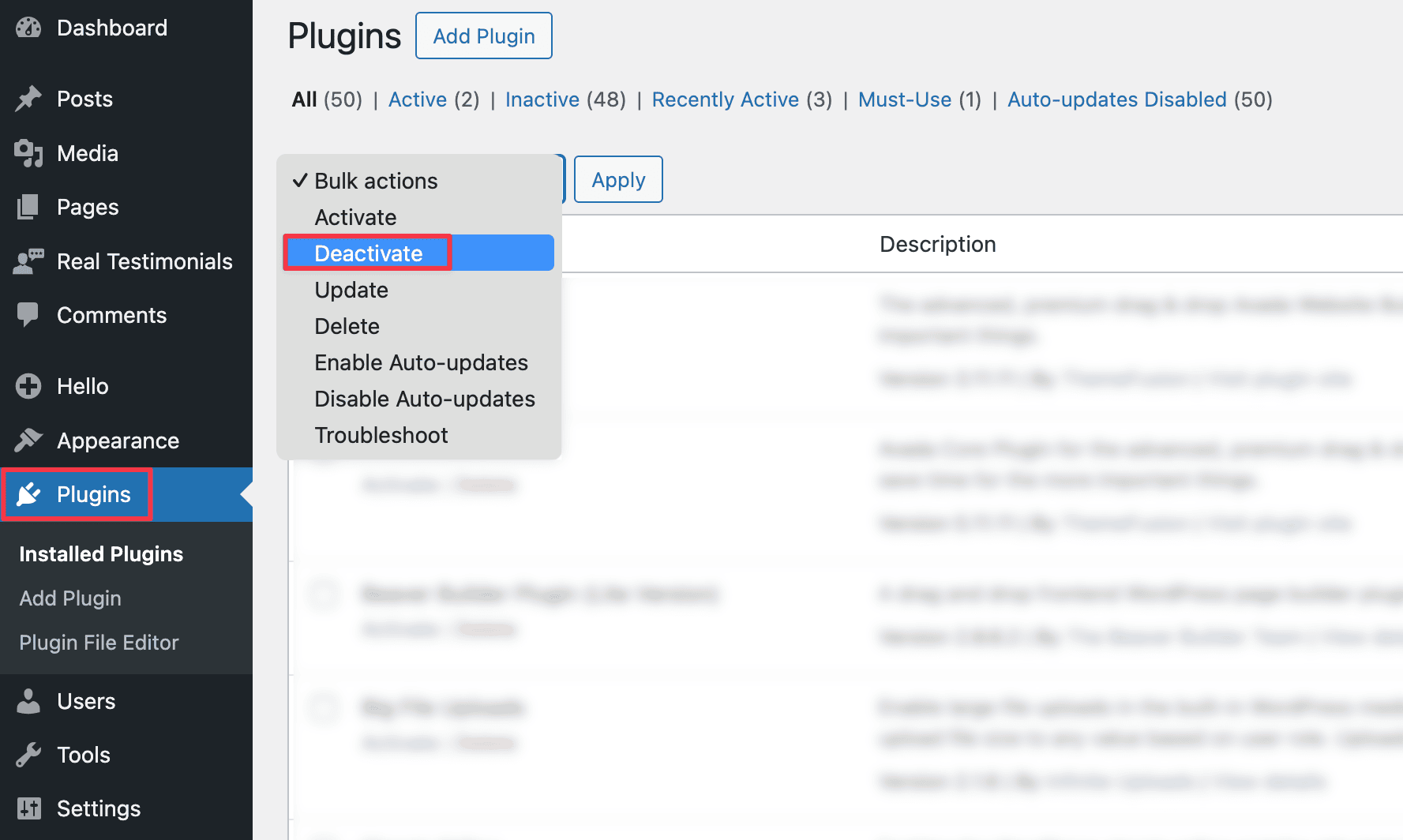
When you click the Apply button, WordPress will deactivate all the selected plugins at once.
Reactivate Plugins and Monitor the Issue
Once you’ve deactivated all your plugins except for WooGallery, you’ll need to check if the problem persists. If you still see the issue, you’ll know there wasn’t a plugin conflict and can move on to testing your theme.
If the issue is fixed, however, the next step is to determine which specific plugin was triggering it. To do so, you’ll need to reactivate each plugin one by one.
Each time you activate another plugin, check on the issue again. To accomplish this, it’s easiest to keep two browser tabs or windows open, one showing the Plugins page and the other showing the issue gallery.
When the issue reappears, you’ll know the most recently activated plugin is the cause of the conflict.
Checking for Theme Conflicts
If the issue still persists after troubleshooting for a plugin conflict, the next step is to see if the issue stems from your site’s theme.
To test for a theme-related issue, you’ll need to switch to a default WordPress theme. They’re all named by year (Twenty Twenty, Twenty Twenty-One, etc.).
These themes are fairly simple and follow strict standards, which makes them good for testing. If you’re already using one of these themes, then switch to one you’ve never used before.
When you’re ready to switch your theme, go to Appearance » Themes. From here, click on Add New and search for “Twenty Twenty-One” (or one of the other recent default themes).
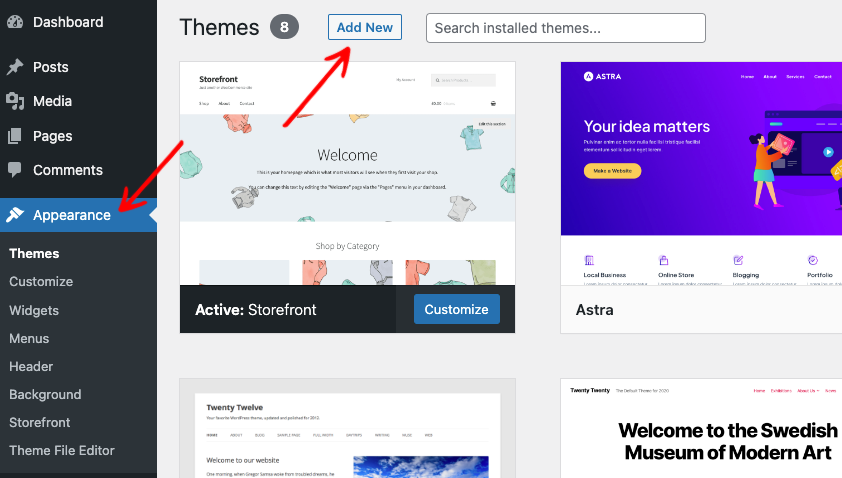
Then click on Install followed by Activate.
Once a default theme is activated, you’ll need to try to replicate the issue again. If the problem is resolved with the new theme in place, you’ll know the cause lies with your regular site theme.
What to Do After Locating a Conflict
Note: The best way to avoid theme or plugin conflicts is only to install high-quality ones on your site.
If you’ve found that a plugin or theme causes the issue you’re facing, there are two steps you should take:
Contact the Plugin or Theme’s Support Team
It’s important to let the team know what you have found for the product that’s experiencing the issue. In many cases, the support team or author will be familiar with the problem already and may even have a solution to share with you.
Let Our Team Know What You’ve Found
We really appreciate you taking the time to let us know about any problems you encounter and any solutions you’ve learned of. That way, our support team can share what you’ve found with others encountering the same issue.
Unfortunately, we aren’t able to fix issues with third-party code, such as themes or other plugins. As mentioned above, you’ll need to contact the support team for the conflicting plugin or theme to do that.
If you would like to look into alternative plugins or themes you can use instead of the one(s) causing the conflict with the WooGallery, consider looking through ShapedPlugin’s Plugin and Theme archives. In some cases, we may also be able to provide recommendations to help you find a suitable alternative.
That’s it! We hope this tutorial has helped you locate any theme or plugin conflicts occurring on your WordPress site.